Settings
Every setting of the app in the order the app shows it, with its path, default value and an example of what it does to the KROS document.
The Settings page has four sections: KROS connection, When to create invoices, Invoices and Emails. Below them are More settings, which you set once: Invoice contents, Order changes and EU VAT, Invoice in customer emails and App. Until KROS is connected you see only the connection and App.
Save your changes with the bar Shopify shows at the top; "Settings saved" confirms it. Each page saves only its own fields. A new setting applies to documents sent to KROS after you save; documents already in KROS do not change.
The KROS interface is in Slovak, so KROS menu items are given with their Slovak name.
KROS connection
The KROS company your documents are sent to.
Connect KROS
(Path) Settings → Connect KROS Fakturácia → Connect KROS
Opens KROS in a new tab, where you sign in and approve access. The page then refreshes itself. The approval has to be done within 15 minutes. The steps are under Getting started.
Use an API token instead
(Path) Settings → Connect KROS Fakturácia → Use an API token instead
A fallback without the approval page. In KROS open Settings → API connections (Nastavenia → API prepojenia), create a connection, enter the values of the Notification URL (in KROS: URL pre príjem notifikácií z API) and Authorization key (in KROS: Autorizačný kľúč) fields, paste the generated token into API token and press Save token.
Reconnect and Disconnect
(Path) Settings → KROS connection → Reconnect
Once connected you see the company name with the Connected badge. Use Reconnect when the app says KROS access no longer works or the stored token can't be read, and on the notice "KROS notifications go to an old address".
Disconnect asks for confirmation: new orders stop going to KROS, existing invoices stay.
When to create invoices
Set per payment method: Bank transfer, Card, Cash on delivery, PayPal, Cash and Other payment methods. Other payment methods covers other gateways and orders marked as paid by hand.
(Path) Settings → When to create invoices → Card
Default: When the order is paid, for every payment method.
| Option | What is created in KROS |
|---|---|
| When the order is placed | An invoice right after the order is placed. For bank transfer, due in 14 days |
| When the order is paid | An invoice when Shopify records the payment |
| When the order is fulfilled | An invoice when the order is fulfilled (shipped) |
| Proforma when placed, invoice when paid | A proforma invoice when placed, the final invoice once paid |
| Don't create invoices | Nothing, not even a payment, since a payment needs an invoice |
The issue date is always the day the invoice is created, not the order day. A bank transfer invoice is due in 14 days, any other method on the issue day. An order on Shopify payment terms (Net 30, for example) gets its invoice when it is placed, due by the terms; with terms due on fulfilment, when it is fulfilled. The options When the order is placed, When the order is fulfilled and Don't create invoices still apply to such orders.
You can print the invoice and put it in the parcel.
Which combination suits the way you sell is under Recommended settings for how you sell.
Skip orders from Shopify POS
(Path) Settings → When to create invoices → Skip orders from Shopify POS
Default: off. When the till prints receipts, no KROS invoice is needed.
Skip orders with a total of 0
(Path) Settings → When to create invoices → Skip orders with a total of 0
Default: on. Covers free and fully discounted orders.
Skip orders made up of gift cards only
(Path) Settings → When to create invoices → Skip orders made up of gift cards only
Default: off. A multi-purpose voucher is taxed when goods are bought with it; check with your accountant.
Invoice businesses only
(Path) Settings → When to create invoices → Invoice businesses only
Default: off. Orders with a company name, IČO, DIČ, VAT ID or a Shopify B2B company get an invoice; consumers get none. When a consumer asks for one, create it by hand with the Create invoice button on the order page.
Skip orders with this tag
(Path) Settings → When to create invoices → Skip orders with this tag
Default: kros-no-invoice. Orders with this Shopify tag get no documents. Case does not matter. An empty field switches it off. Up to 40 letters, digits, spaces, hyphens or underscores.
A tag added later, but still during the wait before the invoice is created, stops the invoice.
Wait before creating the invoice (minutes)
(Path) Settings → When to create invoices → Wait before creating the invoice (minutes)
Default: 2. From 0 to 1440 minutes, 0 sends at once. Time to tag or edit a fresh order, for example while a cash-on-delivery service or Shopify Flow still changes it. Applies to the invoice.
Invoices
Numbering, bank account and warehouse for the documents created in KROS.
Send new orders to KROS
(Path) Settings → Invoices → Send new orders to KROS
Default: on. Switching it off pauses sending, and Home shows "Sending is paused".
While sending is paused, the app also ignores refunds, cancellations and order edits, so invoices that already exist get no credit notes. Credit them in KROS by hand. Documents that were still waiting to be sent when you switched off (for example an invoice inside the Wait before creating the invoice time) end with the status Failed. After switching back on, send them again with Retry on the Documents page.
VAT status of your company
(Path) Settings → Invoices → VAT status of your company
Default: VAT payer (platiteľ DPH). Other options: Not a VAT payer (neplatiteľ DPH) and Registered under §7/7a. Set it the same as in KROS.
Reverse charge and OSS apply to VAT payers only. Details on Taxes.
Numbering sequence (číselný rad)
(Path) Settings → Invoices → Numbering sequence (číselný rad)
Default: Default in KROS. The list shows the invoice sequences of your KROS company by name and code. If a saved sequence was renamed or deleted in KROS, it is listed with the note "no longer exists in KROS, pick another sequence".
Numbering sequence for credit notes (dobropisy)
(Path) Settings → Invoices → Numbering sequence for credit notes (dobropisy)
Default: Same as invoices. KROS recommends a separate sequence (in KROS: Nastavenia → Číslovanie dokladov).
Numbering sequence for proforma invoices
(Path) Settings → Invoices → Numbering sequence for proforma invoices
Default: Default in KROS. Used with the rule Proforma when placed, invoice when paid. Proformas have their own sequences in KROS.
Bank account on invoices
(Path) Settings → Invoices → Bank account on invoices
Default: Default in KROS. You pick from your KROS company's accounts. The account goes on invoices paid by transfer. An invoice in another currency uses your KROS account in that currency, if you have one.
Warehouse code
(Path) Settings → Invoices → Warehouse code
Default: empty. Optional; a KROS warehouse code has up to 3 letters or digits. Products are matched by SKU. A line without an SKU, or with an SKU longer than 25 characters, is not linked to the warehouse.
Add the payment to the invoice in KROS when Shopify records it
(Path) Settings → Invoices → Add the payment to the invoice in KROS when Shopify records it
Default: on. The payment is matched to the invoice by variable symbol: the digits of the order number, the last 10 at most.
Invoice test orders
(Path) Settings → Invoices → Invoice test orders
Default: off. Covers the test gateway and payment test mode. Switched on, test orders would get real numbers, so use it only with a TEST sequence and switch it off afterwards.
Emails
KROS emails the document to the order's address. The sender, the look of the email and the PDF attachment are set in KROS, not in the app, and KROS has to allow sending through the API for your company. Both are covered below in E-mails from KROS and SMTP.
Email invoices to customers
(Path) Settings → Emails → Email invoices to customers
Default: off.
If the document link is already in your Shopify emails, leave this off, or the customer gets two emails.
Email credit notes to customers
(Path) Settings → Emails → Email credit notes to customers
Default: off.
Send invoices to Slovak businesses as e-invoices
(Path) Settings → Emails → Send invoices to Slovak businesses as e-invoices
Default: off. From 1 January 2027, for a VAT payer: an invoice to a Slovak business (a buyer with DIČ) goes as an e-invoice; KROS delivers it through PEPPOL and emails a link with it. Turn it on only once KROS has registered your company for e-invoicing. Before 2027 the app sends no e-invoice.
Email me when a document can't be issued
(Path) Settings → Emails → Email me when a document can't be issued
Default: on. At most once an hour a summary of failed documents goes to the store's email in Shopify. Switched off, you see failures only in the app and by the failure tag on the order.
E-mails from KROS and SMTP
Where e-mails are set up in KROS
In KROS Fakturácia open Settings through the gear icon at the top right (1) and pick Odosielanie e-mailu (e-mail sending) in the left menu (2). Under Nastavenia e-mailu you choose where the e-mails go out from (3): through KROS from doklady@kros.sk, through your own SMTP server, or through Microsoft 365/Outlook. Below you set the sender name (Názov odosielateľa) and the switch PDF doklad v prílohe (PDF attached); without it the customer gets only a link to the document.
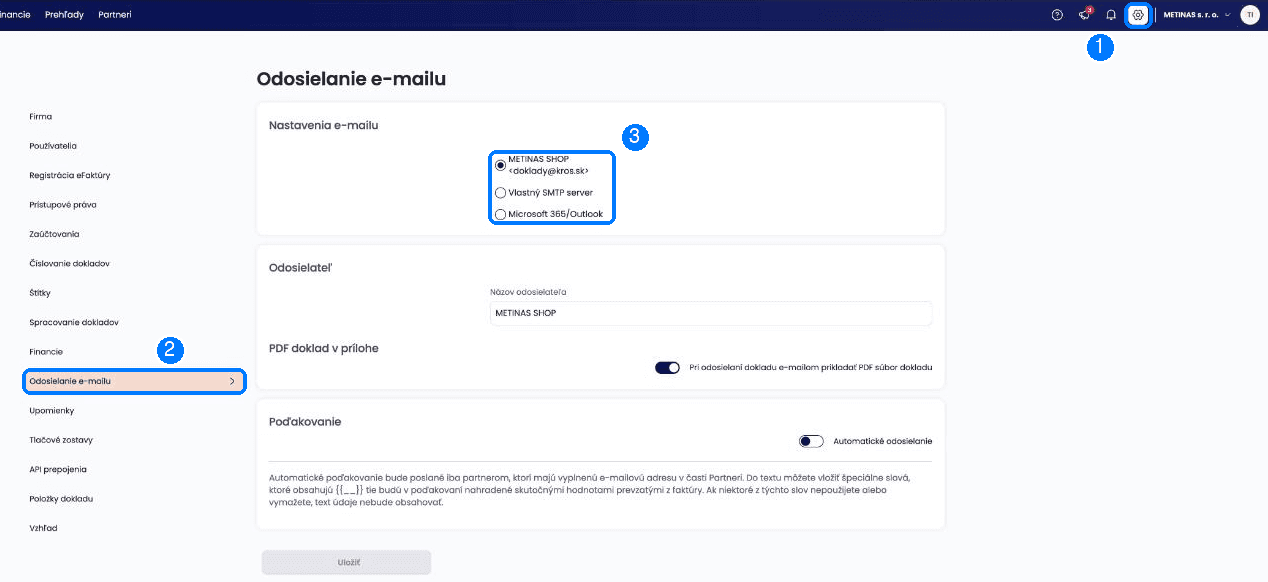
What happens without your own SMTP
By default KROS sends from its own address doklady@kros.sk with your sender name, for example "My shop <doklady@kros.sk>". It works without any setup, but a customer's reply ends up at KROS, not with you, and some mailboxes flag an e-mail from a foreign domain under your name as suspicious. It is fine for trying things out and for a small volume.
What changes with your own SMTP or Microsoft 365
The e-mail leaves from your own address (invoices@myshop.com, say) through your mail server, replies reach you and deliverability follows your domain, including the SPF and DKIM your domain has. For Microsoft 365 a sign-in to the Microsoft account is enough; for another server choose Vlastný SMTP server (4) and fill in the e-mail address, SMTP server address, port, security type and login (5). Your mail provider has these details; for Gmail the form links to a guide. Press Otestovať nastavenia (test settings) (6) before saving, then Uložiť (save).
The setting applies to every e-mail from KROS, not only the ones this app triggers. Nothing needs changing in the app after the sender changes.
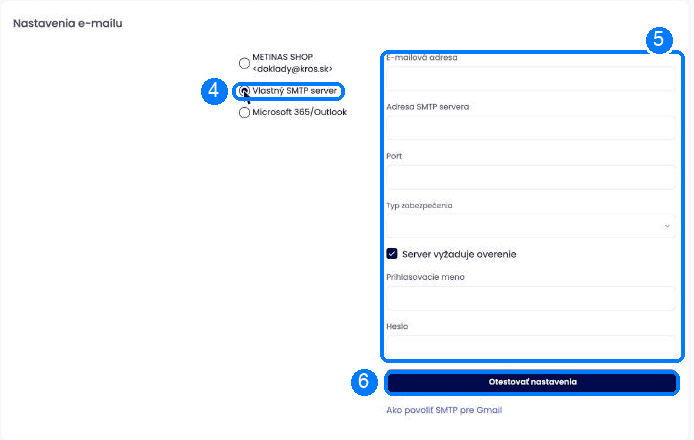
KROS has to allow sending through the API
Sending e-mails at the app's request is a KROS feature that KROS switches on for your company. Until you have it, the app shows a notice in Settings that KROS refused to e-mail documents through the API, the Documents page marks the e-mail as not allowed by KROS, and the documents are created without an e-mail. Ask KROS support to enable sending through the API (OpenAPI) for your company, then save the e-mail settings in the app again.
Invoice contents
(Path) Settings → More settings → Invoice contents
What is printed on each invoice.
Invoice language
(Path) Settings → More settings → Invoice contents → Invoice language
Default: Automatic: the language the customer shopped in (Slovak and Czech in Slovak, German in German, otherwise English). Other options: Slovak, English, German. KROS issues documents in these three languages only.
Text above the items
(Path) Settings → More settings → Invoice contents → Text above the items
Default: empty. Up to 500 characters.
Text below the items
(Path) Settings → More settings → Invoice contents → Text below the items
Default: empty. Up to 500 characters.
KROS tags
(Path) Settings → More settings → Invoice contents → KROS tags
Default: empty. Comma separated, up to 30, each up to 50 characters. New ones are created in KROS.
Date of taxable supply (dátum dodania) is the day the order was paid
(Path) Settings → More settings → Invoice contents → Date of taxable supply (dátum dodania) is the day the order was paid
Default: off: the date of taxable supply is the issue date. Switched on, it is the day of the latest successful payment; for an order not paid yet it stays the issue date.
Check with your accountant which date of taxable supply is right for you.
Print the payment's authorization code on the invoice
(Path) Settings → More settings → Invoice contents → Print the payment's authorization code on the invoice
Default: off. The code comes from the latest successful payment, when the gateway provides one.
Order changes and EU VAT
(Path) Settings → More settings → Order changes and EU VAT
When an order is edited after its invoice exists
(Path) Settings → More settings → Order changes and EU VAT → Order changes → When an order is edited after its invoice exists
Default: Keep the invoice as it is. The other option: Credit note for removed items, extra invoice for added items. A refund always gets a credit note, whatever this option says.
Details on Credit notes and order changes.
EU VAT
(Path) Settings → More settings → Order changes and EU VAT → EU VAT
VAT payers only; check with your accountant. Both options are off by default:
- Reverse charge for EU businesses with a VAT ID (IČ DPH) when Shopify charged no VAT
- OSS for consumers in other EU countries (One Stop Shop registration needed)
How they change the invoice is shown in the scenario matrix on Taxes.
Customer VAT number
An information section without a setting: where the app takes the buyer's VAT number from (Shopify's Company VAT number field or the Company IDs in checkout block). Details on Company details.
Invoice in customer emails
(Path) Settings → More settings → Invoice in customer emails
This page saves nothing: it gives you code to paste into your Shopify notifications. Copy it with Copy code. If the browser blocks copying, select the code and copy it by hand: Ctrl + C (⌘ + C).
Link for the order (recommended)
(Path) Settings → More settings → Invoice in customer emails → Link for the order (recommended)
Works in every email, even before the document exists. It opens whatever document the order has: the proforma, after payment the invoice. Paste it into the Order confirmation and Shipping confirmation notifications above the line <table class="row footer"> (or right before </body>). The code holds your shop's key, keep it in notifications only.
Link with the invoice number
(Path) Settings → More settings → Invoice in customer emails → Link with the invoice number
Fills in only in emails sent after the invoice exists. Meant for your own later notifications; otherwise the link for the order is enough.
App
(Path) Settings → More settings → App → App language
The language of this app in your Shopify admin: Slovenčina, Čeština or English. Default: Slovenčina. It does not change the language of documents; Invoice language does.